TiviMate vs IPTV Smarters Pro: which IPTV player should you actually use?
They solve the same problem in completely different ways. One is built for a remote control and a big screen; the other…
Read the guideBuffering is a symptom, not a cause. Before you blame your provider or your internet, there is a diagnostic order that narrows it down in about ten minutes — and in our support queue, roughly four out of five cases are solved before we get past step four.
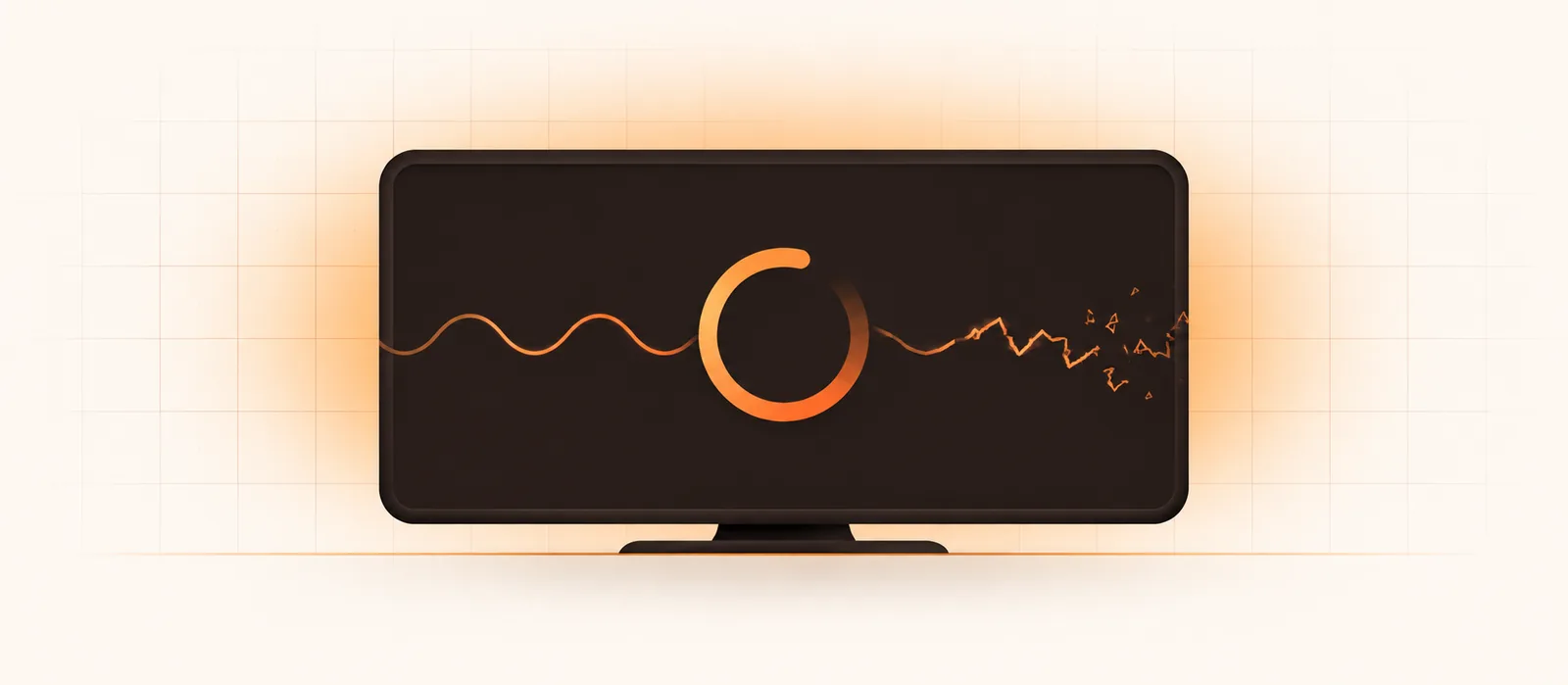
Everybody’s first instinct is the same: the picture freezes, and the internet gets blamed. Sometimes that is right. More often — and I say this having read several thousand support messages — the connection is fine and something much smaller is wrong. A wireless band. A decoder toggle. A resolution setting somebody enabled two years ago and forgot.
What follows is the order we actually work through, written so you can run it yourself. It is deliberately sequential: each step either eliminates a cause or points at one, and skipping ahead is how people end up replacing a perfectly good router.
A live stream arrives as a continuous flow of data. Your player keeps a small reserve of it — the buffer — usually a few seconds’ worth, and plays from that reserve while the next chunk downloads. If data arrives faster than it is consumed, you never notice the buffer exists. If it arrives slower, even briefly, the reserve empties and playback stops until it refills. That pause is the spinning circle.
So buffering means one thing: data did not arrive fast enough or consistently enough. The useful question is which link in the chain slowed down. There are five candidates — the source server, the route between it and you, your router, the wireless hop to your device, and the device itself decoding the video. Each one has a distinctive fingerprint, which is what makes diagnosis possible.
A rock-steady 25 Mbps line will stream 4K flawlessly. A 300 Mbps line that drops packets for half a second every minute will buffer constantly. Speed tests measure the first thing and completely miss the second — which is why “but I have gigabit” is not the argument people think it is.
Before touching a single setting, answer one question: is it one channel, one group, or everything? This single test splits the possible causes almost perfectly in half.
Write down which of the four you have. Half the messages we receive skip this step, and it is the single most useful piece of information you can give any support team.
Run a speed test on the device that is buffering — not on your phone, not on your laptop. A Firestick sitting behind a wall will often measure a third of what your phone gets standing next to the router, and that difference is the entire problem.

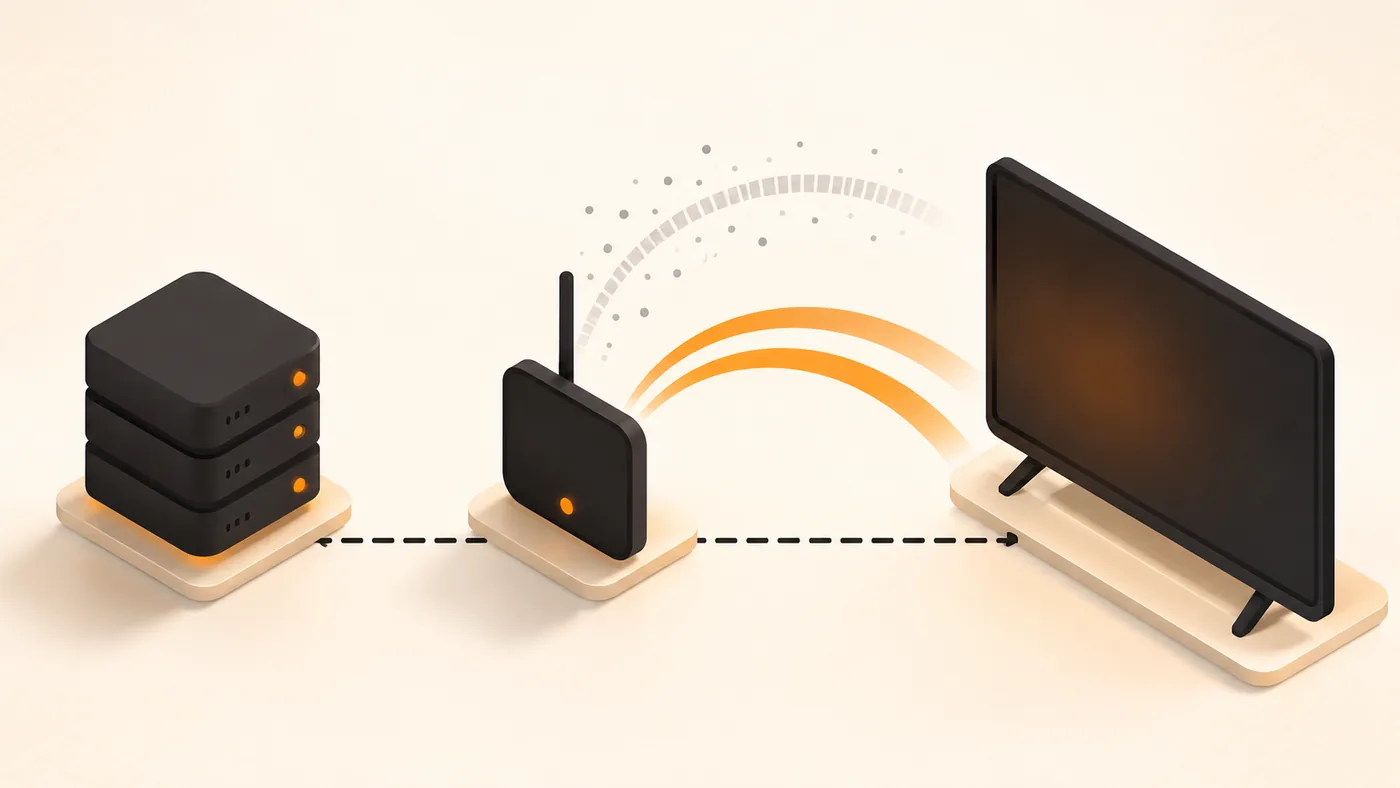
What you actually need, per simultaneous stream:
| Quality | Comfortable speed | Absolute minimum |
|---|---|---|
| SD (regional channels) | 5 Mbps | 3 Mbps |
| HD / 720p | 10 Mbps | 6 Mbps |
| FHD / 1080p | 15–20 Mbps | 12 Mbps |
| 4K | 25–35 Mbps | 20 Mbps |
| 8K feeds | 50 Mbps+ | 40 Mbps |
Two households watching at once need roughly double. A teenager downloading a game in the next room can eat the entire margin on its own — which is why buffering that appears “randomly” is frequently someone else in the house.
This is the most common genuine network cause, and it is invisible unless you look for it. Most routers broadcast two networks: 2.4 GHz and 5 GHz. The 2.4 GHz band travels further through walls but is shared with your neighbours, your microwave, your baby monitor and every smart plug in the building. In a flat with twenty other routers nearby, it can collapse to a few usable megabits at exactly the times everyone is home — evenings and weekends.
Fix, in order of preference:
One practical detail: if your router advertises both bands under a single name (“band steering”), your TV box may cling to 2.4 GHz for hours after you walk into the room. Splitting the two networks into separate names and joining the 5 GHz one manually is a five-minute change that fixes a lot of “random” evening buffering.
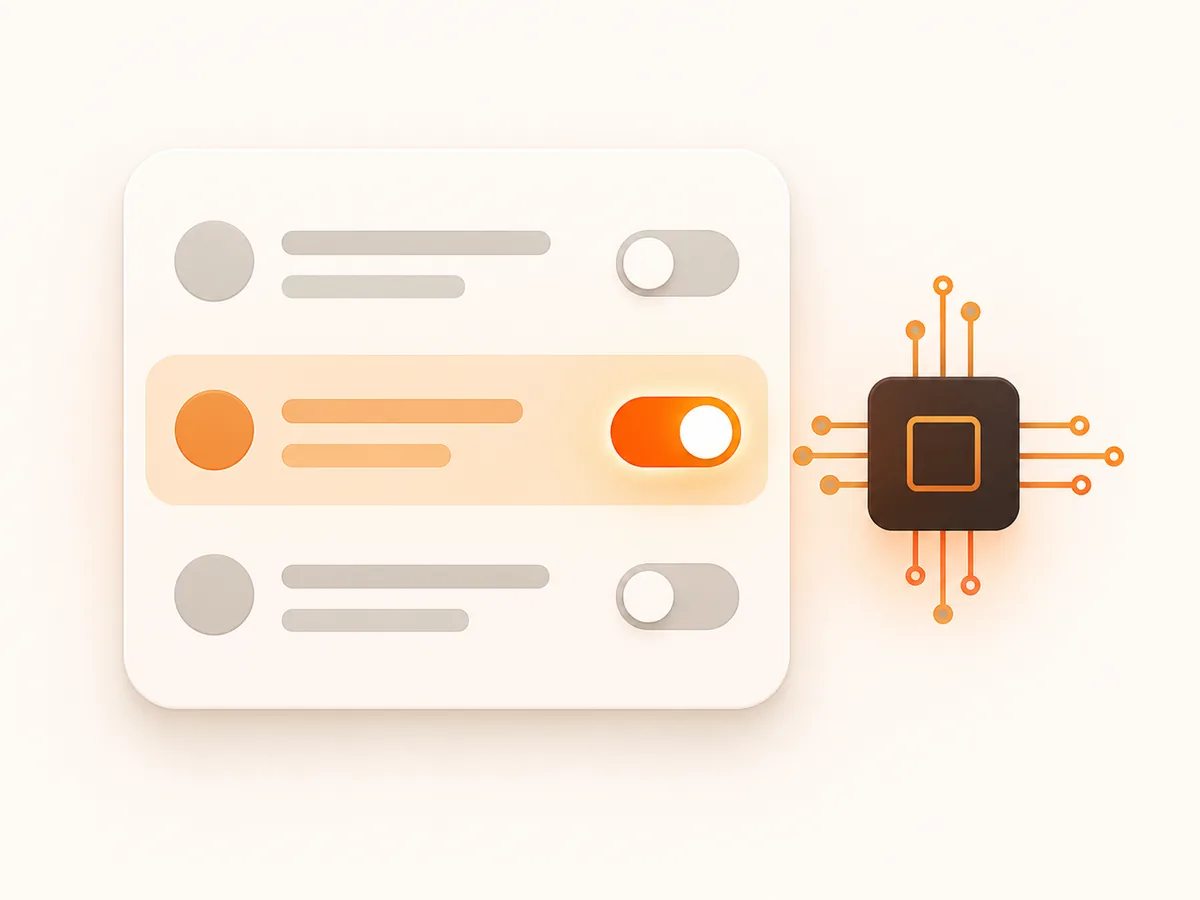
Every IPTV player has a decoder option, usually labelled Auto, Hardware, HW+ and Software. Software decoding makes the device’s general-purpose processor unpack the video frame by frame. On a phone that is fine. On a $35 streaming stick it is hopeless above 1080p — the chip simply cannot keep up, frames get dropped, and the result looks exactly like a network problem even though the data arrived perfectly on time.
Set it to Hardware (or HW+ where offered). In TiviMate it is under playback settings; in IPTV Smarters it is in the player settings for the stream type. If a specific channel then fails to play at all, that channel uses a codec your chip cannot handle in hardware — switch that one back to software and leave everything else on hardware.
If the audio keeps playing smoothly while the picture stutters or tears, that is a decoding problem, not a network one. Network problems stop both at once.
Streaming devices let you force an output resolution and refresh rate. People set them to 4K/60 because it sounds better, and then feed a 1080p TV, or force 60 Hz on content produced at 50 Hz — common across European broadcasts. The box then upscales and re-times every frame in real time, which costs processing headroom it needed for decoding.
Two settings to check on Firestick, Android boxes and Google TV — and if you are setting one up from scratch, our Firestick installation guide covers both in context:
On older hardware, dropping from 4K output to 1080p often eliminates stuttering entirely — and on a screen under 55 inches, most people cannot tell the difference from three metres away.
IPTV apps download the programme guide constantly. After a few months that cache can reach several hundred megabytes, and on a device with 8 GB of storage that causes swapping, slow menus and playback hiccups. On Fire TV: Settings → Applications → Manage installed applications → your player → Clear cache. Do it monthly. Never “clear data” unless you want to re-enter your line.
Streaming sticks are small computers that people leave running for months. Unplug the power for a full ten seconds — not standby, actual power removal — and do the same for the router. Memory leaks in these apps are real, and this genuinely fixes intermittent problems that survive everything else.
Some ISP DNS servers resolve streaming domains slowly or route you to a distant node. Setting the device to a public resolver (1.1.1.1 or 9.9.9.9) sometimes produces an immediate improvement in how quickly channels start. It will not fix mid-stream buffering, but it fixes the “takes eight seconds to open a channel” complaint surprisingly often.
Some providers shape or block the ports live streaming uses, especially at peak hours. The fingerprint is distinctive: most channels work perfectly, but a specific group refuses to start or dies after thirty seconds — and the pattern is identical every evening.
Proving it takes two minutes. Turn on any VPN, connect to a server in a neighbouring country, and try the failing channels again. If they now play flawlessly, your ISP is the cause and there is nothing your provider can do about it. Keep the VPN on the device or, better, on the router.
Geographically, we see this most in Germany, Austria, the Netherlands, parts of the Nordics, Italy and increasingly the UK on certain mobile-broadband providers. In the US and Canada it is rarer on fibre but common on some cable networks during evening peak.
If you have reached this point and everything still buffers on Ethernet, with hardware decoding, at all hours, on two different devices, then the problem is upstream. Two things to establish before you write it off:
There is also a clean way to prove where the fault lies. Take a second provider’s free trial and run it on the same device, on the same connection, at the same hour — Strimo IPTV, KiloTV and Imax IPTV all hand out test lines. If the second line is flawless while the first still stutters, you have your answer and nobody can argue with it. If both behave identically, the problem is at your end after all, and it is back to steps 3 and 4.
And the honest part: some services oversell. They take more customers than their servers can carry, and evenings become unwatchable. No setting on your end fixes that. If a provider cannot resolve it within a couple of days, the answer is a different provider — which is precisely why we argue for testing during peak hours before you commit to a long plan.
Free 24-hour line, no card details. Load it on your own TV, open your own channels on a Saturday afternoon, and see whether the picture holds. That is the only test that means anything.
| What you see | Most likely cause | First thing to try |
|---|---|---|
| One channel only | That source feed | Report the channel name to support |
| Only in the evening | Congestion (yours or theirs) | Test same channel at 11am |
| Audio fine, video stutters | Decoding | Switch to hardware decoder |
| Everything, on Wi-Fi only | 2.4 GHz band | Ethernet or 5 GHz |
| Channels take 8+ seconds to open | DNS resolution | Set DNS to 1.1.1.1 |
| Some channels never start | ISP port shaping | Test with a VPN |
| Fine on phone, bad on TV box | Device hardware or output setting | Drop output to 1080p, hardware decode |
| Got worse after a few months | App cache / storage | Clear cache, power-cycle |
| VOD perfect, live broken | Live server node | Ask support to reroute you |
Slightly, on paper — usually 5 to 15 percent. In practice, if your ISP is shaping streaming traffic, a VPN makes things dramatically faster because it stops the shaping. Try it both ways and keep whichever is better.
Only if you are genuinely below the speeds in the table above. Going from 100 Mbps to 500 Mbps changes nothing if the bottleneck is a congested 2.4 GHz signal or a device decoding in software. Fix those first; they are free.
Because everyone in your country is watching the same feed at the same moment. Providers with real load balancing spread that across multiple sources; providers that oversold their capacity do not. It is the single best moment to test a service, which is why we recommend trialling at kick-off rather than midweek.
Yes. It is the cheapest, most reliable upgrade available for streaming, and it removes the largest single source of complaints we see. Around $10–15 for the official adapter.
Run step 1. If other channels play perfectly at the same moment on the same connection, your internet is demonstrably delivering data — and their answer is wrong. That one observation ends most of these arguments.
If you take one thing from this: work in order, and change one variable at a time. The temptation is to alter five settings at once and then have no idea which one mattered. Ten patient minutes almost always beats a new router.
They solve the same problem in completely different ways. One is built for a remote control and a big screen; the other…
Read the guide
The Firestick is the most common IPTV device in the world, and also the most commonly misconfigured one. This is the exact…
Read the guide
Free IPTV is not a scam and paid IPTV is not automatically better. They are two different products solving two different problems,…
Read the guide